Go Getting Started Guide
Getting started with Go is simple: install the toolchain, pick an editor, initialize a project, and run your first program. This guide walks through each step in order.
What You Need to Start with Go
You need two things: a code editor, and the Go toolchain itself.
1. Code Editor or IDE
Any text editor works, but these are the most common choices in the Go community:
- Visual Studio Code (VS Code) — free, beginner-friendly, and has an official Go extension. This is the recommended choice for most learners.
- GoLand — a full-featured, Go-specific IDE from JetBrains (paid, with a free trial).
- Vim / Neovim — lightweight and highly configurable, popular with experienced developers.
2. The Go Toolchain
Unlike C or C++, where you typically install a compiler separately from your editor, Go ships as a single toolchain that includes the compiler, formatter, dependency manager, and test runner — all accessed through the go command.
Installing Go
- Visit the official downloads page: https://go.dev/dl/
- Download the installer for your operating system (Windows, macOS, or Linux).
- Run the installer and follow the setup instructions.
- Verify the installation by opening a terminal and running:
go versionExpected output (the exact version number will differ):
go version go1.23.0 darwin/arm64If a version number is printed, Go is installed correctly.
Note: The official Go download and documentation domain is
go.dev(withgolang.orgstill redirecting there). Usinggo.dev/dl/avoids relying on the older domain.
Setting Up VS Code for Go Development
- Download and install VS Code from https://code.visualstudio.com/.
- Open VS Code.
- Go to the Extensions panel (
Ctrl+Shift+Xon Windows/Linux,Cmd+Shift+Xon macOS). - Search for "Go" and install the official extension published by the Go Team at Google.
- Open any
.gofile, or open the Command Palette (Ctrl+Shift+P/Cmd+Shift+P) and run Go: Install/Update Tools. - Select all the listed tools and click OK. VS Code will download supporting tools such as
gopls(the Go language server), which powers autocomplete, go-to-definition, and inline error checking.
Your environment is now fully configured for Go development.
Go Project Initialization
Before writing code, initialize a Go module. A module tracks your project's dependencies and gives your code an import path, similar to how package.json works in a Node.js project.
go mod init example.com/myappThis creates a go.mod file in your project folder — a small text file that records the module's name and the Go version it targets. Every standalone Go project should start with this step.
Your First Go Program
Step 1: Create a New File
Create a file named main.go inside your project folder.
Step 2: Add the Following Code
package main

import "fmt"

func main() {
    name := "Developer"
    fmt.Println("Hello,", name, "! Welcome to Go.")
}
Step 3: Run the Program
go run main.goExpected output:
Hello, Developer ! Welcome to Go.go run compiles the program to a temporary binary, executes it immediately, and then discards the binary. It's the fastest way to test code while developing.
Note on spacing:
fmt.Printlninserts a space between every argument, which is why the output above readsDeveloper !with a space before the exclamation mark rather thanDeveloper!. If you want the punctuation attached directly to the name, concatenate the strings instead:fmt.Println("Hello, " + name + "! Welcome to Go.").
Building an Executable
go run is convenient for development, but for deployment you want a standalone binary:
go build main.goThis produces a compiled binary:
- On Windows →
main.exe - On macOS/Linux →
main
You can run this file directly, on any machine with a matching operating system and architecture, without installing Go or any other dependency:
./mainBonus Example: A Simple Calculator
package main

import "fmt"

func main() {
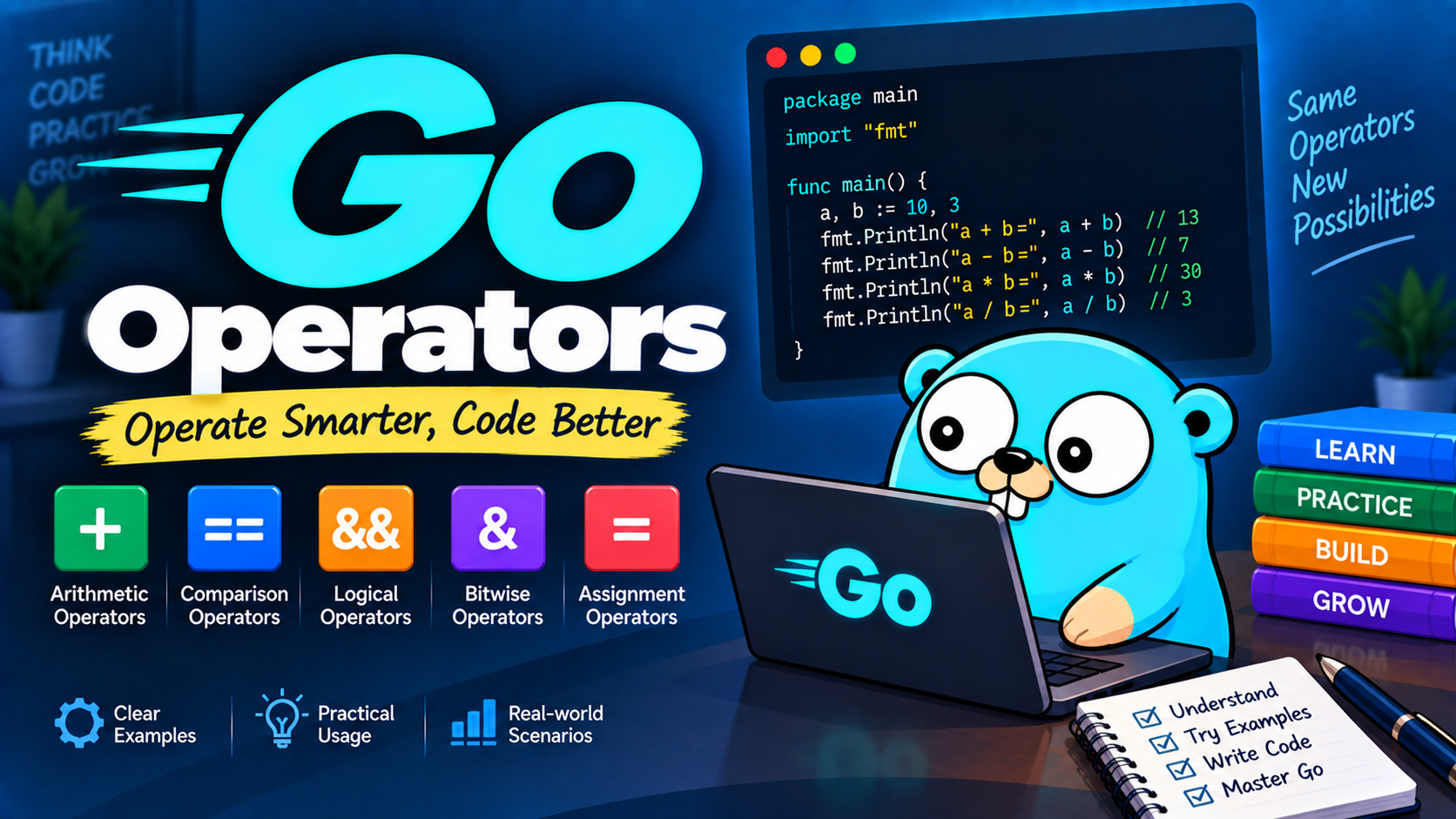
    var a, b int = 10, 5

    sum := a + b
    difference := a - b
    product := a * b
    quotient := a / b

    fmt.Println("Sum:", sum)
    fmt.Println("Difference:", difference)
    fmt.Println("Product:", product)
    fmt.Println("Quotient:", quotient)
}
Expected output:
Sum: 15
Difference: 5
Product: 50
Quotient: 2
Notice that quotient prints 2, not 2.0 — both a and b are integers, so / performs integer division and discards the remainder. This is a frequent source of bugs for beginners coming from languages where division always returns a decimal; the Data Types and Operators lessons cover this in more depth.
Tips for Beginners
- Always run
go mod initwhen starting a new project — manygocommands and third-party tools expect ago.modfile to be present. - Keep related source files inside a single project folder.
- Use
go runwhile developing and testing, andgo buildwhen you're ready to produce a binary for distribution. - Run
gofmt(or let your editor run it automatically on save) to keep your code consistently formatted — Go's tooling treats formatting as a solved problem, not a style debate. - Browse the standard library documentation at https://pkg.go.dev/std — a large share of what you'll need (HTTP, JSON, file I/O, time) is already built in.
What You've Accomplished
By this point you have:
- Installed Go and verified the installation
- Configured VS Code for Go development
- Initialized a Go module
- Written, run, and compiled your first Go program