Python File Handling
File Handling
Variables live in memory, which means their data disappears as soon as a program ends. To keep data — user settings, logs, reports, uploaded content, or saved game progress — a program must write it to a file on disk and read it back later.
File handling is how a program creates, reads, updates, and deletes files. Python provides built-in tools for all of these tasks, without needing any extra libraries.
This lesson introduces the core tool, the open() function, and the file modes that control what you can do with a file. The following lessons cover reading, writing, and deleting files in detail.
The open() Function
The primary function for working with files is open(). It connects your program to a file and returns a file object — an object with methods such as read(), write(), and close().
Syntax
file_object = open(filename, mode)| Parameter | Description |
|---|---|
filename | The name of the file, or its path (for example, "notes.txt" or "data/notes.txt") |
mode | A short string that specifies how the file is opened: for reading, writing, appending, and so on |
The Typical File Workflow
Working with a file always follows three steps:
- Open the file with
open(). - Work with it — read or write data.
- Close it with
close(), to release it back to the operating system.
File Open Modes
Text Modes
| Mode | Name | Behavior | If the File Does Not Exist | If the File Exists |
|---|---|---|---|---|
"r" | Read | Opens the file for reading (default) | Raises FileNotFoundError | Reads from the beginning |
"a" | Append | Adds new content to the end of the file | Creates the file | Keeps existing content |
"w" | Write | Writes content from the beginning | Creates the file | Erases all existing content |
"x" | Exclusive create | Creates a new file for writing | Creates the file | Raises FileExistsError |
Choosing a mode:
- Use
"r"to read a file. - Use
"a"to add to a log or history without losing earlier entries. - Use
"w"to replace a file completely — but be careful, because existing content is lost immediately. - Use
"x"when you must never overwrite an existing file.
Warning: Opening a file in
"w"mode erases its content as soon as the file is opened — even before you write anything.
Text vs Binary Mode
A second letter specifies how the data is handled:
| Mode | Name | Data Type | Used For |
|---|---|---|---|
"t" | Text (default) | Strings (str) | .txt, .csv, .json, .html, .py files |
"b" | Binary | Bytes (bytes) | Images, audio, video, PDFs, ZIP files |
The two letters are combined:
| Combination | Meaning |
|---|---|
"rt" or "r" | Read text |
"rb" | Read binary |
"wt" or "w" | Write text |
"wb" | Write binary |
"ab" | Append binary |
A + can be added to open a file for both reading and writing — for example, "r+" — but this is less common and easier to misuse.
Opening a File for Reading
To open a file for reading, you only need the filename:
data = open("notes.txt")This works because both "r" (read) and "t" (text) are the default values. The line above is equivalent to:
data = open("notes.txt", "rt")Example: Reading File Content
Assume a file named notes.txt exists in the same folder as your Python script and contains:
Buy groceries
Call the bank
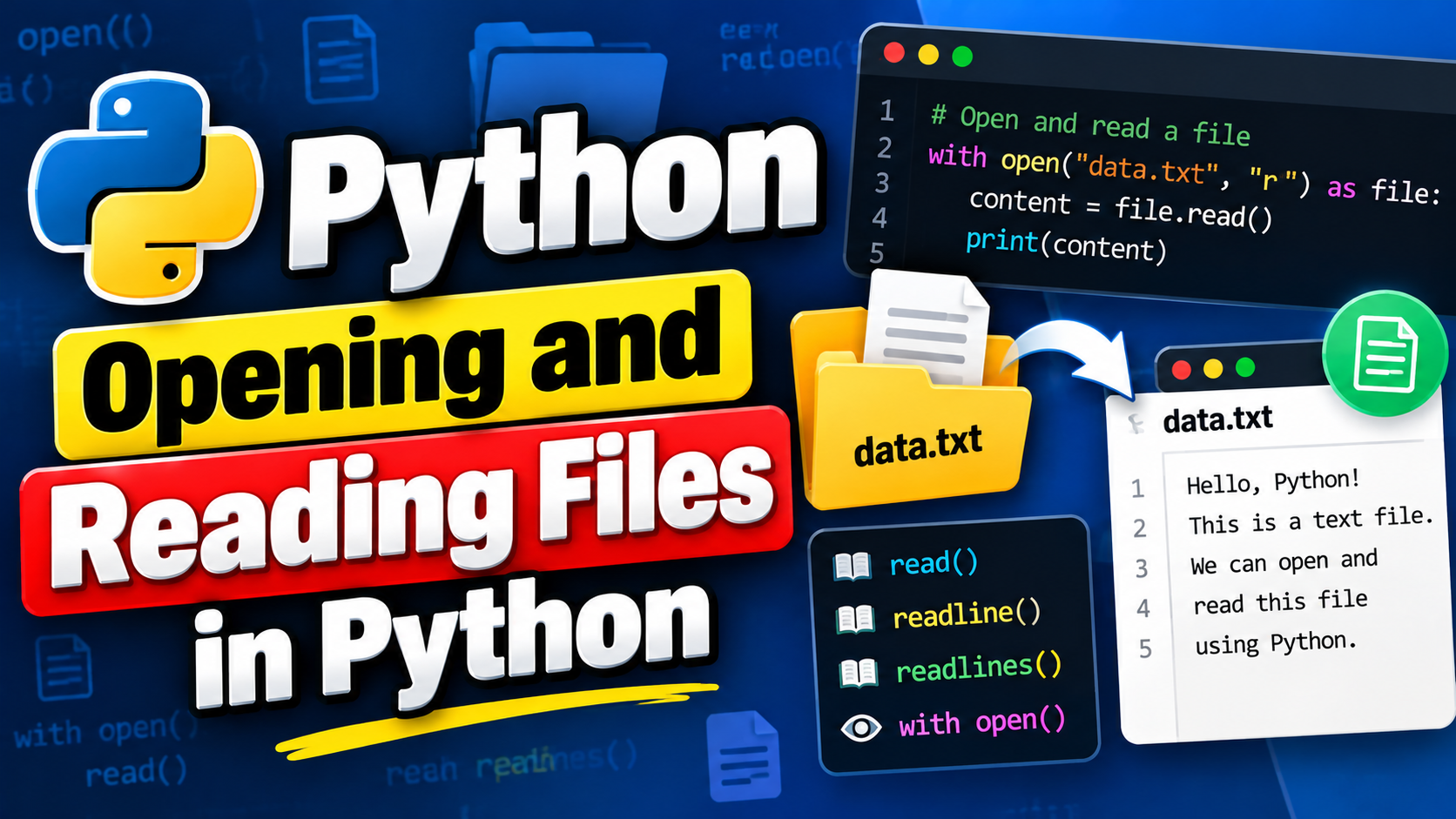
file = open("notes.txt", "r")
content = file.read()
print(content)
file.close()Expected output:
Buy groceries
Call the bank
What happens:
open("notes.txt", "r")opens the file and returns a file object.file.read()reads the entire content as a single string.print(content)displays it.file.close()closes the file.
Why Closing Files Matters
Always close a file when you are finished with it:
- It frees system resources — the operating system limits how many files a program can have open.
- It ensures written data is actually saved. Python may hold written data in a temporary buffer and write it to disk only when the file is closed.
- On some systems, an open file cannot be moved, renamed, or deleted by other programs.
The with Statement (Recommended)
Remembering to call close() is easy to forget — and if an error occurs before close() runs, the file stays open. The with statement solves both problems by closing the file automatically.
with open("notes.txt", "r") as file:
    print(file.read())
Expected output:
Buy groceries
Call the bank
How it works:
open(...)opens the file, andas filenames the file object.- The indented block uses the file.
- As soon as the block ends — normally or because of an error — Python closes the file.
with open("notes.txt", "r") as file:
    content = file.read()

print(file.closed)
Expected output:
TrueThe with statement is cleaner, safer, and the standard approach in professional Python code. The rest of the file handling lessons use it.
File Paths
A filename alone, such as "notes.txt", refers to a file in the current working directory — usually the folder from which you ran the script. To reach a file elsewhere, use a path:
| Path Type | Example | Meaning |
|---|---|---|
| Relative | "data/notes.txt" | Relative to the current working directory |
| Absolute (Windows) | "C:/Users/Asha/notes.txt" | The full location on the drive |
| Absolute (Linux/macOS) | "/home/asha/notes.txt" | The full location from the root |
Tip: Forward slashes (
/) work on Windows too. If you use backslashes, write a raw string —r"C:\Users\Asha\notes.txt"— so that sequences like\nare not treated as escape characters.
Handling a Missing File
Reading a file that does not exist raises an error:
with open("missing.txt", "r") as file:
    print(file.read())
Output:
FileNotFoundError: [Errno 2] No such file or directory: 'missing.txt'Handle it with try and except:
try:
    with open("missing.txt", "r") as file:
        print(file.read())
except FileNotFoundError:
    print("The file could not be found.")
Expected output:
The file could not be found.Specifying the Encoding
Text files are stored as bytes using an encoding that maps characters to bytes. The default encoding can differ between operating systems, which may cause errors or garbled text with non-English characters. Specifying UTF-8 makes your code behave the same everywhere:
with open("notes.txt", "r", encoding="utf-8") as file:
    print(file.read())
Using encoding="utf-8" for text files is a good habit.
Common Mistakes
| Mistake | Problem |
|---|---|
| Forgetting to close the file | Resources are not released; written data may be lost |
Using "w" when you meant "a" | Existing content is erased |
| Reading a file that does not exist | FileNotFoundError |
| Running the script from a different folder | Relative paths point somewhere unexpected |
| Using backslashes in normal strings | "C:\new" contains a newline character; use / or a raw string |
| Opening an image in text mode | Decoding errors; use "rb" for binary files |
Related Concepts
- Python Opening Files — reading entire files, parts of files, and lines
- Python Writing and Creating Files — writing, appending, and creating files
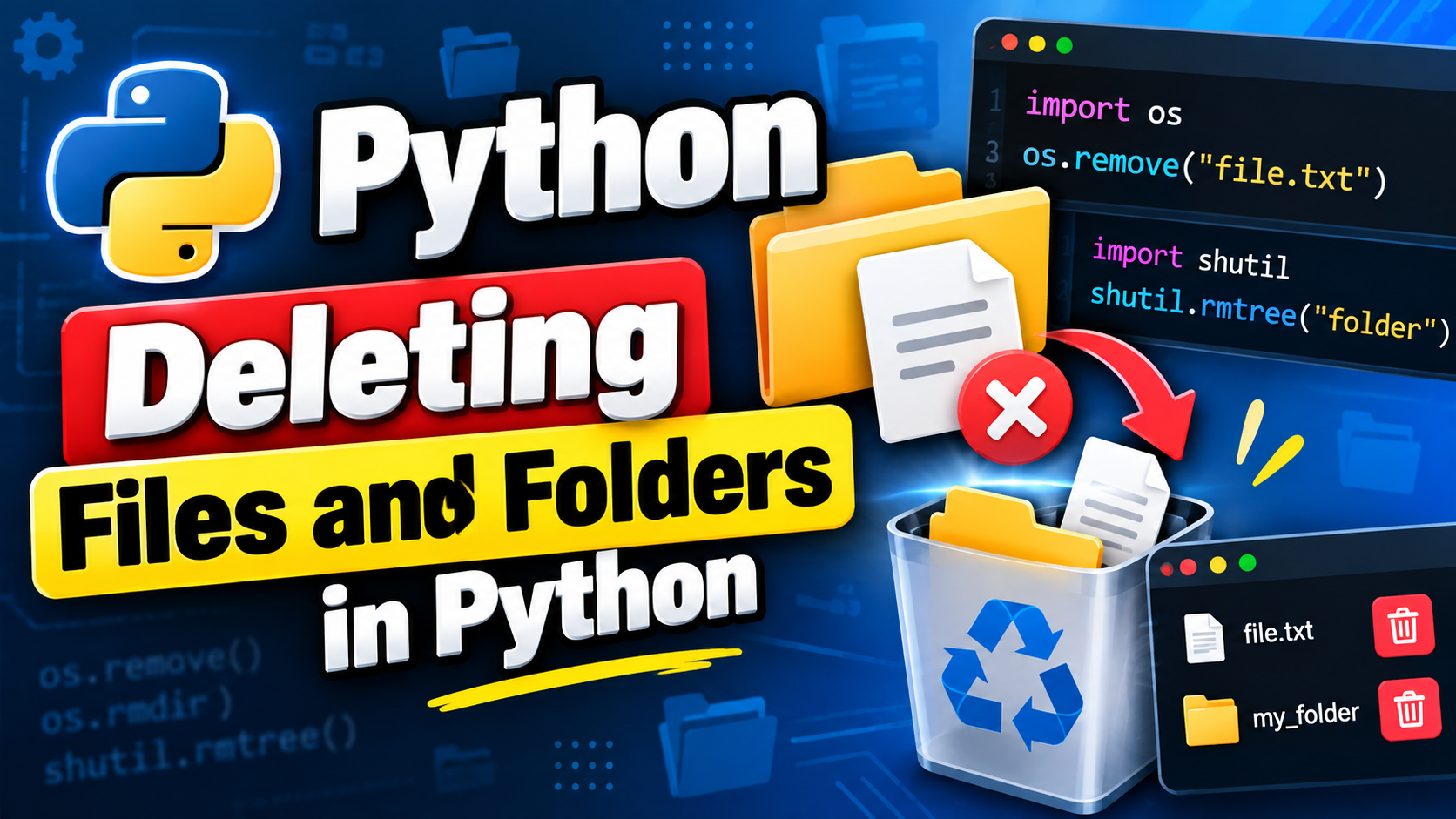
- Python Deleting Files — removing files and folders with the
osmodule - Python Exception Handling — handling
FileNotFoundErrorand other errors