Introduction to Python
What Is Python?
Python is a high-level, general-purpose programming language known for its clean syntax and readability. It was created by Guido van Rossum and first released in 1991. Unlike many languages that rely on complex symbols and rigid formatting rules, Python emphasizes code that reads almost like plain English.
Python is an interpreted language, which means you don't need to compile your code before running it. You write a Python file, run it directly through the Python interpreter, and see the output immediately. This makes Python especially popular for beginners, while its depth and ecosystem also make it a serious tool for professional software development.
Python is widely used across many domains:
- Web development — building server-side applications and APIs
- Software and application development — desktop tools, automation scripts, CLI programs
- Data analysis and scientific computing — working with large datasets, statistics, and visualization
- Machine learning and artificial intelligence — powering libraries like TensorFlow, PyTorch, and scikit-learn
- System scripting and automation — automating repetitive tasks on servers and local machines
What Can Python Do?
Python's versatility comes from its large standard library and massive third-party ecosystem. Some of the most common things developers use Python for include:
- Building web applications on the server side, often with frameworks like Django or Flask.
- Connecting to databases to read, write, update, and delete data (common in backend systems).
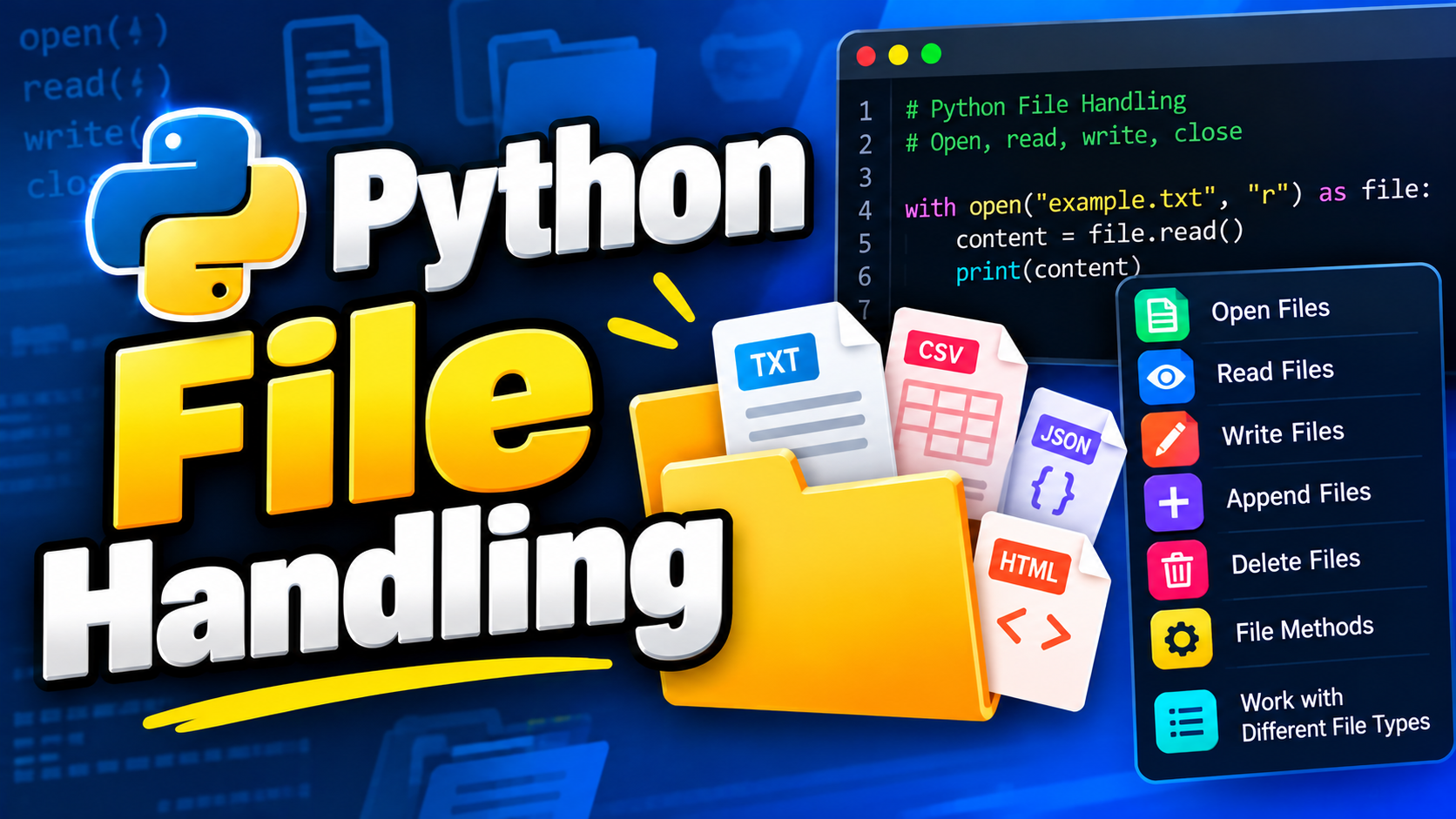
- Reading and writing files in formats such as text, CSV, JSON, and Excel.
- Automating repetitive tasks, such as renaming files, sending emails, or scraping websites.
- Performing mathematical and statistical computations, often using libraries like NumPy and pandas.
- Building machine learning models and processing large volumes of data.
- Rapid prototyping, since Python's simple syntax allows ideas to be tested quickly before being scaled into production-ready systems.
Note: Python is not limited to one type of application. The same core language is used to build a simple automation script and a large-scale production web service — the difference is usually in the libraries and frameworks used on top of it.
Why Choose Python?
Python consistently ranks among the most popular programming languages, and for good reason:
- Cross-platform — Python runs on Windows, macOS, Linux, and even embedded devices like the Raspberry Pi without requiring code changes.
- Readable syntax — Python code uses indentation instead of curly braces, and its structure closely resembles natural English, making it easier to learn and maintain.
- Fewer lines of code — Many tasks that require several lines in languages like Java or C++ can be written more concisely in Python.
- Interpreted execution — Since Python code runs directly through an interpreter, you can test small pieces of logic instantly without a separate compilation step, which speeds up development and debugging.
- Multi-paradigm support — Python supports procedural programming, object-oriented programming, and functional programming, so you can choose the style that best fits your problem.
- Large ecosystem — The Python Package Index (PyPI) hosts hundreds of thousands of third-party packages for nearly any use case.
| Feature | Description |
|---|---|
| Execution model | Interpreted (no separate compile step) |
| Typing | Dynamically typed |
| Syntax style | Indentation-based, minimal punctuation |
| Common uses | Web apps, automation, data science, ML, scripting |
| Platforms | Windows, macOS, Linux, Raspberry Pi |
Installing Python
Python installation differs slightly depending on your operating system. Follow the instructions relevant to your platform below.
Installing Python on Windows
1. Go to the official Python website: python.org
2. Navigate to Downloads → Windows.
3. Download the latest Python 3.x installer (the download button on the homepage typically points to the latest stable release).
4. Run the downloaded installer.
Warning: During installation, make sure to check the box labeled "Add python.exe to PATH" before clicking Install. If you skip this step, you won't be able to run `python` from the Command Prompt without manually configuring your system's PATH afterward.
5. Click Install Now and wait for the setup to complete.
6. Once finished, close the installer.
Verify the installation by opening Command Prompt and running:
python --versionYou should see output similar to:
Python 3.12.4
Note: The official Windows installer also installs `pip` (Python's package manager) automatically, so there's no separate step needed to get it on Windows.
Installing Python on Linux (Ubuntu/Debian-based)
Most Linux distributions come with Python 3 pre-installed, but it's good practice to make sure you have the latest available version and `pip`.
1. Open the Terminal.
2. Update your package list:
sudo apt update3. Install Python 3:
sudo apt install python34. Install `pip` (Python's package manager), which is not always bundled by default on Linux:
sudo apt install python3-pipVerify the installation:
python3 --versionNote: On most Linux systems, the command is `python3`, not `python`. Some distributions map `python` to Python 2 or don't define it at all, so using `python3` explicitly avoids ambiguity.
Installing Python on macOS
macOS does not ship with a version of Python suitable for development by default (older macOS versions included Python 2, which reached end-of-life in January 2020). You have two common options:
Method 1: Official Installer
1. Go to python.org .2. Navigate to Downloads → macOS.
3. Download the latest macOS 64-bit installer.
4. Open the downloaded `.pkg` file and follow the installation prompts.
Method 2: Using Homebrew (Recommended)
Homebrew is a package manager for macOS that makes installing and updating software, including Python, much easier.1. Install Homebrew if it isn't already installed:
/bin/bash -c "$(curl -fsSL https://raw.githubusercontent.com/Homebrew/install/HEAD/install.sh)"2. Install Python using Homebrew:
brew install pythonVerify the installation:
python3 --versionNote:Homebrew keeps Python up to date more easily than the official installer, since you can simply run `brew upgrade python` later on.
Writing and Running Your First Python Program
Python programs are plain text files saved with a `.py` extension. You can write them in any text editor or a dedicated code editor such as VS Code, PyCharm, or Sublime Text — no special software is required beyond the Python interpreter you just installed.
Step 1: Create the File
Create a new file named `hello.py` and add the following line:print("Hello, World!")Step 2: Run the File
Open your terminal or command prompt, navigate to the folder containing `hello.py`, and run:python hello.pyOn Linux or macOS, use:
python3 hello.pyExpected output:
Hello, World!Explaining the Example
- `print()` is a built-in Python function that outputs text to the console.
- The text inside the parentheses, `"Hello, World!"`, is a string — a sequence of characters enclosed in quotes.
- Python executes the file top to bottom, line by line, which is why running this single-line file immediately prints the message and exits.
Common Mistakes When Getting Started
1. Forgetting to add Python to PATH on Windows
Incorrect result: Running `python` in Command Prompt returns `'python' is not recognized as an internal or external command`.
Why it happens: The installer's "Add python.exe to PATH" checkbox was left unchecked.
Correct approach: Re-run the installer, choose Modify, and enable the "Add python.exe to PATH" option, or manually add the Python installation directory to your system's PATH environment variable.
2. Using `python` instead of `python3` on Linux/macOS
Incorrect approach:
python hello.pyWhy it's a problem: On many Linux and macOS systems, `python` either points to an old Python 2 installation or isn't defined at all.
Correct approach:
python3 hello.py3. Using smart/curly quotes instead of straight quotes in code
Incorrect:
print(“Hello, World!”)Why it's wrong: Curly quotes (`“` `”`) are not valid Python string delimiters — this often happens when code is copied from a word processor or a webpage with automatic text formatting. It raises a `SyntaxError`.
Correct approach:
print("Hello, World!")Always use straight quotes (`'` or `"`) when writing Python code, and write code in a plain text editor or IDE rather than pasting from formatted documents.
Best Practices for Setting Up a Python Environment
- Always install Python 3, not Python 2 — Python 2 reached end-of-life in January 2020 and no longer receives security updates.
- Use virtual environments (`python -m venv env_name`) for each project to keep dependencies isolated and avoid version conflicts between projects.
- Keep pip updated using `python -m pip install --upgrade pip` to avoid issues installing newer packages.
- Check your Python version regularly, especially when following tutorials, since syntax and available features can differ between major versions (for example, f-strings require Python 3.6 or later).
- Use a proper code editor (VS Code, PyCharm, etc.) instead of a plain text editor for anything beyond a single-file script — this gives you syntax highlighting and early error detection.